Agent Properties
 Previous
Next
Previous
Next
Agent Properties |
Previous
Next
|
|
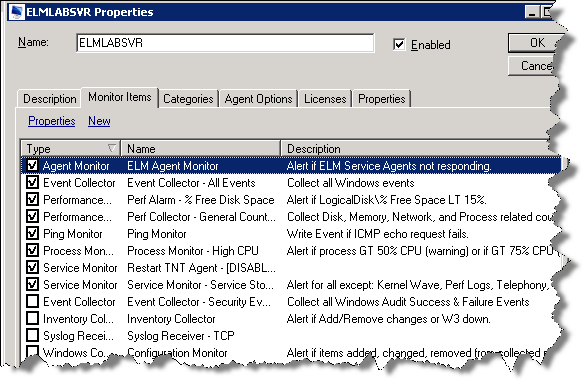
To view the properties of an Agent right click on the Agent name and select Properties. DescriptionThe description tab provides a note area for a system administrator to describe the system being monitored. Monitor ItemsThe Monitor items tab displays all Monitors available to an Agent. The list of Monitor Items available is determined by the total population of Monitor Items created plus the licenses assigned to the Agent. Monitor items that are already assigned to agent are indicated by a check mark next to the Monitor item name.
CategoriesThe Categories tab displays all Agent Monitoring or Maintenance category groups currently assigned or available to the agent. A category may be assigned or unassigned by checking the box next to the category name. Agent OptionsThe Agent Options tab displays the following information: Agent Service SettingsService Agent Logon AccountThis is the account used by the TNTAgent service for operations such as running scripts and batch files. The Default of "Local System Account" is used in most daily operations. Agent StatusDisplays a summary of monitor item actions being performed by the agent, such as event collection or agent heartbeat. Server CollectionThis is a list of ELM servers that the agent has been configured to send data. A server may be unregistered by right clicking on the server name and LicensesShows the currently assigned licenses, and allows an administrator to change the licenses assigned to the Agent. PropertiesNameIdentifies the Agent computer. The Name can be a NetBIOS computer name, DNS computer name, or TCP/IP address. EnabledTo disable monitoring of the computer clear this checkbox. DescriptionEnter a brief description and notes about the agent. Monitor ItemsDisplays the Monitor Items assigned to the Agent. Monitor Items can be assigned directly to an Agent by checking the checkbox of Monitor Items on this list, or by assigning them to one of the Monitoring Categories to which the agent belongs. Right click to create or edit a Monitor Item. CategoriesDisplays the Monitoring Categories assigned to the Agent. Click to select or deselect Monitoring Categories. Right click to create or edit a Monitoring Categories. LicensesDisplays license types and the selected license for the agent. |